Free Images to PDF Converter - Combine Images into One PDF

Convert multiple images into a single PDF document in seconds. Our tool combines JPG, PNG, and other image formats into one convenient PDF file, perfect for creating portfolios, reports, or sharing collections.

No software installation required. Works on any device.

How to Convert Images to PDF

Creating PDFs from images is straightforward:

1. Upload your images (JPG, PNG, or other formats)
2. Arrange them in the order you want
3. Click convert
4. Download your PDF file

You can combine as many images as you need into one document.

Why Convert Images to PDF?

PDF files keep everything together. Instead of emailing five separate image files, send one PDF. Recipients get everything in order without hunting through attachments.

Professional presentation matters. A portfolio of work samples looks more polished as a single PDF than scattered image files.

Printing becomes easier with PDFs. Send one file to the printer instead of managing multiple images. Page ordering stays consistent.

File sharing is simpler. Many platforms limit the number of files you can upload. One PDF bypasses these restrictions.

Document preservation works better with PDFs. Images in a PDF maintain their relationships and can’t accidentally get separated or deleted individually.

Common Uses for Image to PDF Conversion

Business proposals combining graphs, charts, and product photos into comprehensive documents. PDFs make proposals look professional and are harder to accidentally edit.

Photo albums and scrapbooks turn into shareable digital documents. Family photos, vacation pictures, or event coverage packaged nicely.

Receipt collections for expense reports or tax records. All your receipts in one searchable PDF beats managing dozens of individual photos.

Real estate listings with multiple property photos. Agents can send complete property packages to clients in one file.

Tutorial and how-to guides with step-by-step screenshots. Sequential images in a PDF create clear instructional materials.

Design portfolios showcasing various projects. Freelancers and agencies present work samples in a professional package.

PDF Organization Tips

Put your best image first. The first page sets the tone for the entire document. Lead with your strongest visual.

Group related images together. If your PDF covers multiple topics, cluster relevant images in sections.

Consider adding blank pages as dividers between major sections. This creates visual breaks and helps viewers navigate longer documents.

Consistent image sizes create smoother viewing. While PDFs can handle different dimensions, uniform sizing looks more professional.

Image Quality in PDFs

We preserve your original image quality. The images in your PDF look exactly like your source files.

File size depends on your images. High-resolution photos create larger PDFs. Compressed images make smaller documents.

For web sharing, consider compressing images before converting to PDF. This creates smaller files that load faster when shared online.

For print projects, keep high-resolution images. Print quality requires more pixels than screen viewing.

PDF Page Sizing

Your PDF can use different page sizes:

Letter size (8.5″ x 11″) works for standard documents and matches most printers
A4 size is the international standard slightly taller and narrower than Letter
Custom sizes fit your specific needs

We automatically fit images to your chosen page size. Large images scale down to fit, small images remain their actual size.

Image to PDF Converter

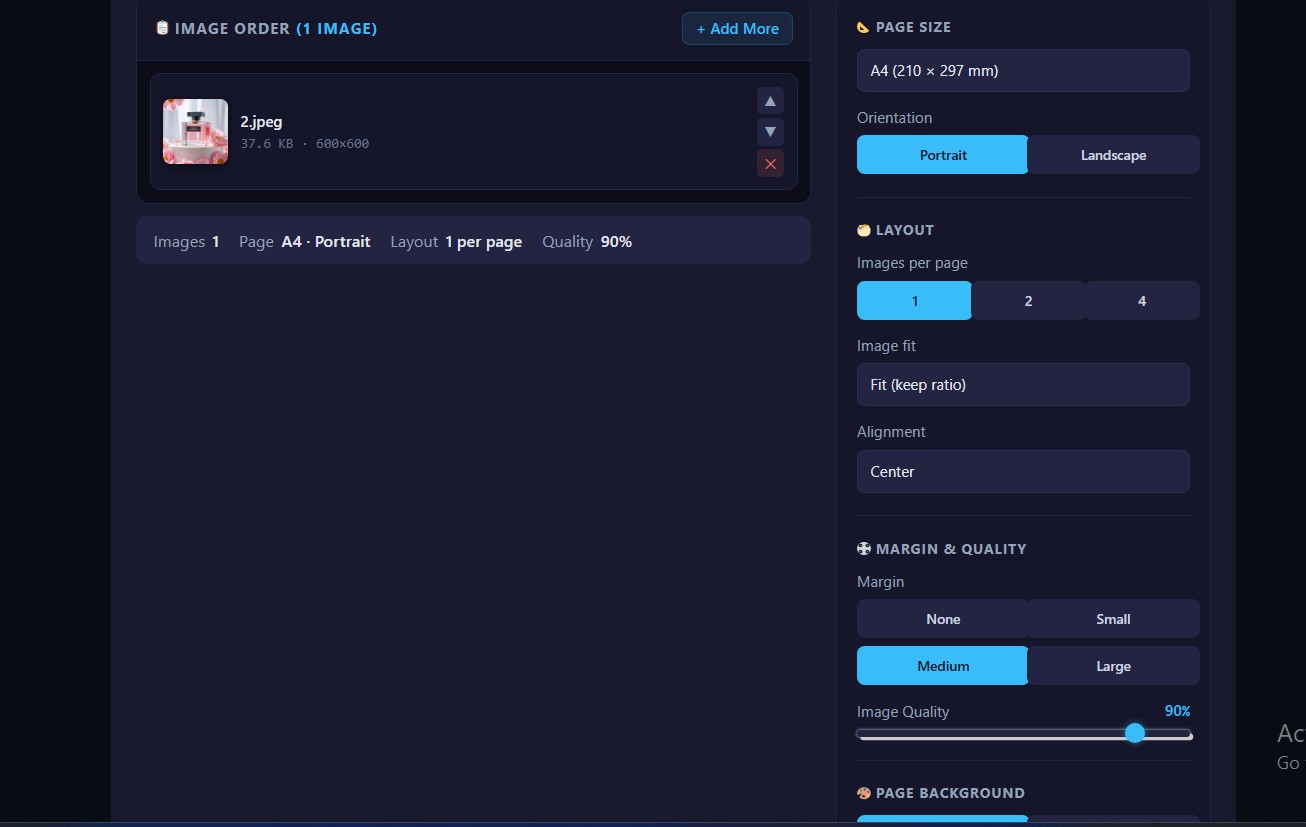
Convert one or more images to a PDF document with advanced customization options. Adjust page settings, image quality, and security options.

Drag & drop your images here or

No images added yet. Upload images to get started.

PDF Settings

Choose the paper size for the PDF

Choose the page orientation

Set the margin around the image

Choose how images fit on the page

Choose the alignment of images on the page

Choose the image quality in the PDF

Choose how many images to place on each page

Choose the compression level for the PDF

Password Protection

Creating PDF...

PDF Created Successfully

Frequently Asked Questions

How many images can I combine?

You can add up to 100 images in one PDF. Need more? Create multiple PDFs.

JPG, PNG, WEBP, GIF, and most common formats are supported.

Yes, drag and drop to rearrange before converting.


We maintain original quality unless you specifically choose compression for smaller file sizes.

This tool converts images to PDF. For adding text, use a PDF editor after conversion.

The resulting PDF can be several hundred megabytes depending on your images.

No, files are processed and immediately deleted from our servers.

Tips for Better PDFs

Name your PDF descriptively. “Portfolio_2025.pdf” helps you find it later better than “Document1.pdf”

Check image orientation before converting. Rotate any sideways images first for consistency.

Review page order carefully. Once converted, reordering pages requires PDF editing software.

Test your PDF before sharing. Open it and scroll through to make sure everything looks right.

PDF Advantages Over Image Folders

Single file simplicity beats managing folders full of images. One file to track, back up, and share.

Version control is easier. Name your PDF with dates or version numbers. Everyone stays on the same page literally.

Cross-platform compatibility is better. PDFs open consistently across Windows, Mac, phones, and tablets. Image files sometimes display differently.

Security options exist for PDFs. You can password-protect sensitive documents. Individual images have no built-in security.

File size management works well. One 10MB PDF is easier to email than ten 1MB images hitting attachment limits.

When to Use Other Formats

If recipients need to edit individual images, keep them separate. PDFs aren’t meant for extracting and editing.

For websites, individual images usually work better than PDFs. Each image can load independently and be optimized for web.

When images need transparent backgrounds, PNG files preserve transparency better than PDFs.

Photo storage services might prefer original image formats. Check your platform’s preferred format before converting.

Professional Tips

Add a cover page using a title image. This creates a professional first impression.

Maintain consistent margins. If your images have white space around them, keep it uniform throughout the document.

Consider color profiles for print PDFs. RGB works for screens, CMYK for professional printing.

File naming conventions help. Use consistent naming like “ClientName_ProjectType_Date.pdf”

Batch Processing Strategies

If you regularly convert images to PDF, develop a workflow. Keep a template folder structure for organizing before conversion.

Pre-process images in batches. Resize, compress, and organize all images before starting conversion.

Standard page sizes simplify sharing. Pick one default size for most projects and stick with it.


Ready to create your PDF? Upload your images, arrange them in order, and get a professional PDF document in seconds. Perfect for portfolios, reports, or any collection of images.