How to Turn an Image Black and White Online Free (2026)
My grandfather shot black and white film in the 1960s. He said color photos were for amateurs. Real photographers worked with light and shadow. I did not understand him until I started editing my own photos. Black and white removes distraction. It shows shape, texture, and contrast. This free guide shows you how to turn an image black and white online free in thirty seconds. No Photoshop. No downloads. No cost. Use the free black and white converter here
What you will learn
Why turn an image black and white

1. Artistic and dramatic effect
Color distracts. A bright red jacket pulls your eye from the subject's face. A busy background competes for attention. Black and white removes those distractions. You see composition, light, and shadow. Portrait photographers still shoot black and white for this reason.
2. Save ink on printing
Color ink costs money. Printing dozens of black and white photos costs less. Convert your images first. You control how they look in print. You see exactly what the printer will produce.
3. Vintage and nostalgic look
Some photos work better without color. Old family photos. Historical buildings. Street photography. Black and white makes them feel timeless. It honors the era instead of hiding it.
4. Fix poorly lit photos
Bad indoor lighting creates weird color casts. Yellow light. Green fluorescent light. Blue shadows at sunset. Converting to black and white fixes these problems instantly. The color issues disappear. You get a clean, dramatic image.
5. Professional headshots and portraits
Corporate headshots look more professional in black and white. LinkedIn profile pictures work better too. Color photos show their age. Black and white photos look timeless. A black and white portrait could have been taken yesterday or ten years ago.
Step by step guide
Follow these steps. You will have your black and white photo in under thirty seconds.
Ready to convert your image? Open the free black and white converter tool
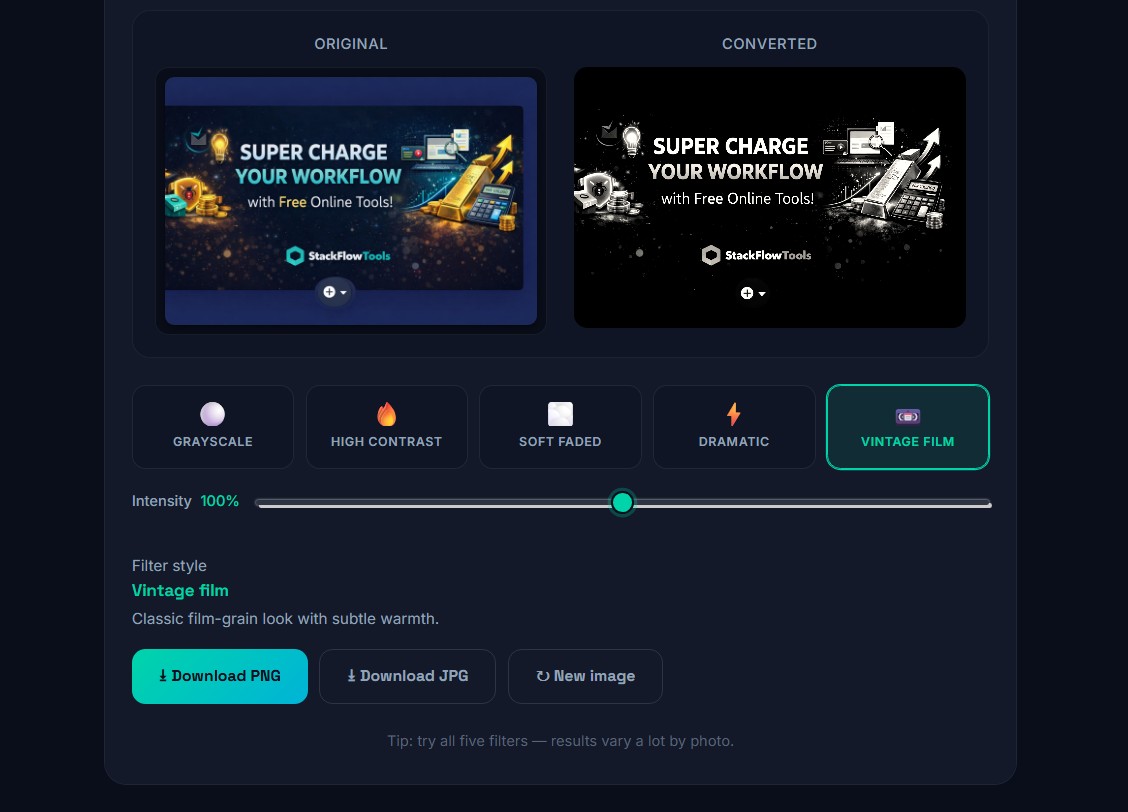
- Open the free tool. Go to stackflowtools.com/black-white-image-converter. No signup needed.
- Upload your image. Click the upload zone. Select a JPG, PNG, or WebP file from your device. Maximum size is 20MB.
- Choose your style. Pick from five filters. Grayscale, High Contrast, Soft Faded, Dramatic, or Vintage Film. Each gives a different look.
- Adjust intensity. Use the slider to blend between color and black and white. 100 percent is full conversion. 50 percent gives a desaturated look.
- Download your result. Select PNG for lossless quality. Select JPG for a smaller file. Click download. Your black and white photo saves instantly.
Convert your image now. It is free. Use the black and white image converter
Quick tip: Start with Grayscale for most photos. It gives the most natural result. Then try the other styles to see what fits your image.
No software to install. No account to create. The tool runs in your browser. Your photo never leaves your device.
Five black and white styles explained
Not all black and white photos look the same. Here are the five styles in the tool.
Grayscale
Standard luminance conversion. The most natural result. Preserves original brightness relationships. Best for most photos.
High Contrast
Deepens shadows. Brightens highlights. Good for architecture, street photography, and dramatic portraits. Makes textures pop.
Soft Faded
Reduces contrast. Lifts shadows. Gives an airy, dreamy effect. Excellent for portraits, lifestyle photos, and weddings. Makes skin look softer.
Dramatic
Maximizes depth. Adds cinematic quality. Good for landscapes and moody portraits. Creates a film noir feel.
Vintage Film
Warm sepia toning. Mimics black and white film from the 1950s and 1960s. This produces sepia toned monochrome, not pure black and white. Great for old family photos.
Quick filter reference
Use this table to pick the right style for your photo.
| Filter Style | Best For | Effect |
|---|---|---|
| Grayscale | Most photos, general purpose | Natural, accurate black and white |
| High Contrast | Architecture, street photography, dramatic portraits | Deep shadows, bright highlights, punchy |
| Soft Faded | Portraits, lifestyle, wedding | Dreamy, airy, flattering on skin |
| Dramatic | Landscapes, moody portraits, cinematic | Maximum depth, film noir feel |
| Vintage Film | Old family photos, historical subjects | Warm sepia toned monochrome |
Black and white vs grayscale
People use these terms interchangeably. Technically they are different.
Grayscale means every pixel is a shade of gray between pure black and pure white. This is standard photographic conversion. Most people mean grayscale when they say black and white.
True black and white uses only two colors. Pure black and pure white. No gray in between. This is rare in photography. It works for logos, icons, and graphic design. Use the High Contrast filter at maximum intensity for this effect.
Monochrome means any single color image. A sepia photo is monochrome but not black and white. The Vintage Film filter produces sepia toned monochrome output.
For everyday use, call it black and white. That is what people search for. That is what this guide covers.
How to do it on iPhone and Android
You can use the online tool on your phone.
On iPhone using Safari
Open Safari. Go to the free black and white image converter. Tap the upload button. Select a photo from your camera roll. Choose your filter. Tap download. The black and white photo saves to your Photos app. No app installation needed. Works on iOS 14 and later.
On Android using Chrome
Open Chrome. Go to the tool page. Tap the upload area. Select a photo from your gallery. Pick your filter. Tap download. The image saves to your Downloads folder. You can move it to your gallery from there.
Built in iPhone method
Open a photo in the Photos app. Tap Edit. Tap the filters icon. Scroll to the monochrome filters. Tap one. Tap Done. This gives you one style only. No intensity control. No vintage or dramatic options.
Built in Android method
Open a photo in Google Photos. Tap Edit. Tap the Filters tab. Scroll to the black and white options. Tap one. Tap Save. Again, limited to one or two styles. No intensity adjustment.
The online tool gives you five styles and full intensity control. That is why I recommend it over the built in options.
Pro tips for better results
I converted hundreds of images to learn these lessons. Some came from mistakes.
Start with a high contrast original
Black and white conversion works best with good contrast. A flat, evenly lit photo looks flat and gray after conversion. Look for bright highlights and dark shadows. Those make the most dramatic results.
Crop before converting
Use our free image cropper first. Remove distracting elements from the edges. A tighter composition focuses attention on your subject. Then convert to black and white. You get a stronger final image.
Shoot with black and white in mind
If you plan to convert to black and white, shoot for contrast. Look for strong shadows. Look for interesting textures. Avoid colors that have similar brightness. A red object and a green object with the same brightness will look the same shade of gray.
Remove background for clean portraits
Want a clean black and white headshot? First remove the background using our AI background remover. Then convert the isolated subject to black and white. Place it on a white or black background. You get a professional portrait without a studio.
Try the negative effect for art projects
After converting to black and white, try our negative image converter. Inverting a black and white photo creates a striking negative effect. Dark becomes light. Light becomes dark. Works well for album covers and art projects.
Compress large files after converting
PNG files from the converter are lossless but large. If you need a smaller file for email or web upload, run the result through our image compressor. Set your target KB size. The tool handles the rest.
Other free image tools you might use
Once you learn how to turn an image black and white, you might need other edits. Here are related tools I use regularly.
- Black and White Converter Turn any photo to grayscale. Five filter styles. Adjustable intensity.
- Negative Image Converter Invert colors to create a photo negative effect. Great for artistic projects.
- Background Remover AI removes backgrounds from portraits, products, and logos. Outputs transparent PNG.
- Image Compressor Reduce file size to any exact KB target. 20KB, 50KB, 100KB, or custom.
- Image Cropper Crop to exact dimensions for social media, passports, or custom sizes.
- AI Image Upscaler Enlarge small photos up to 4x without blur. Uses ESRGAN deep learning.
- Image Stretcher Change aspect ratio independently. Stretch horizontally or vertically without cropping.
- Image Rotation Tool Rotate photos 90 degrees, 180 degrees, 270 degrees, or any custom angle. Fix sideways pictures.
For a complete overview, read our guide to the best free online tools for designers and freelancers. It covers all of these tools in one place.
Frequently asked questions
How to turn an image black and white online free
Upload your image to our free black and white converter. Choose your filter style. Adjust intensity. Download. No signup required. Works on any device. Takes about ten seconds.
What is a BW converter
BW converter is short for black and white converter. It turns color images to black and white. Our BW converter offers five styles. Grayscale, High Contrast, Soft Faded, Dramatic, and Vintage Film. You can adjust the intensity from full color to full black and white.
Can I convert an image to pure black and white with no gray
Yes. Pure black and white uses only two tones. Pure black and pure white. No shades of gray. Use the High Contrast filter at maximum intensity. This creates a posterized effect. It works best for logos, icons, and graphic designs. For photographs, standard grayscale usually looks better.
Does converting to black and white reduce file size
Not by much. A color JPG and a black and white JPG at the same quality setting have similar size. Real file size reduction comes from compression, not desaturation. Use our image compressor for significant size reduction.
Can I turn a PNG image black and white
Yes. The tool accepts PNG, JPG, and WebP files. Output can be PNG or JPG. If your PNG has transparency, the output PNG preserves that transparency.
Will I lose quality when converting to black and white
No. Color to black and white conversion is lossless. Each pixel's RGB value converts to a gray value. No compression occurs during conversion. Download as PNG and quality matches the original except for the color removal.
How do I make a picture black and white on my phone
Open the tool in Safari on iPhone or Chrome on Android. Upload from your camera roll. Apply the filter. Download to your photos. No app installation needed. Takes about fifteen seconds.
What is the difference between black and white and monochrome
Monochrome means any single color image. Black and white is a type of monochrome. Sepia photos are also monochrome but not black and white. Our Vintage Film filter produces sepia toned monochrome output, not pure black and white.
Which black and white filter works best for portraits
Soft Faded works best for most portraits. It reduces contrast and lifts shadows. This makes skin look softer and more flattering. Avoid High Contrast for portraits. It looks harsh on skin tones.
Is this tool really free
Yes. Completely free. No signup. No watermark. No premium tier. No daily limits. Convert as many images as you want. The tool runs in your browser. We have no server costs to recover.
Final thoughts
That is everything I learned about turning images black and white. The process is simple. The result can be dramatic. It takes about ten seconds from upload to download.
I use this tool more than I expected. Portraits look more professional. Landscapes look more dramatic. Old family photos look timeless. Poorly lit photos become usable.
Ready to convert your image
Open the Free Black and White ConverterStackFlow Tools