✂️ AI Background Remover — Free Online

Remove Image Background
Free, instant, no signup.

The fastest way to remove backgrounds from photos online — powered by AI, completely free. Portraits, product photos, logos and more. Get a clean transparent PNG in seconds. Works on iPhone, Mac, Android and Windows — nothing is uploaded to any server.

AIPowered
100%Free Forever
0Watermark
0Signup Needed
PNGTransparent Output
PrivateBrowser Only
⚡ 3 Simple Steps

How to Remove an Image Background

Clean transparent PNG in under 30 seconds — no Photoshop, no account, no cost.

01 📂

Upload Your Image

Drop a JPG, PNG or WebP into the tool, or click to browse your device. Up to 10 MB. Works from camera roll on iPhone and Android too.

02 🧠

AI Removes the Background

The AI model detects your subject — person, product, animal or object — and removes everything around it. No selection, no masking, no manual work needed.

03 ⬇️

Download Your PNG

Get a clean transparent PNG instantly. Or add a new background color, gradient or custom image before downloading. Free, no watermark, no limits.

✨ Full Feature List

Everything Built Into One Tool

Not just a basic cutter — edge refinement, background replacement and full output control.

🧠

AI Background Detection

State-of-the-art AI model identifies subjects automatically — no manual selection, no lasso tools, no effort.

👤

Portrait Mode

Dedicated AI model optimised for human hair, skin and fine face edges. Use this for selfies, headshots and passport photos.

📦

Product & Object Mode

General AI mode optimised for products, logos, animals and objects against any background color.

Edge Refinement

Feathering and smoothing controls for edges — removes the harsh pixel-cut look and gives results a natural, professional finish.

🎨

Background Replacement

Keep transparent, add a solid color, use a gradient or upload a custom background image — all before downloading.

📐

Crop to Subject

Optionally auto-crop the canvas to the subject boundaries after removal — no wasted whitespace in the final PNG.

💾

PNG & JPG Output

Download as transparent PNG or as JPG with your chosen background. Set quality from 70% to 100% for the right size balance.

🔒

100% Private

All processing runs in your browser. Your image never leaves your device and is never uploaded to any server at any point.

📱

Works on iPhone

Open in Safari, upload from camera roll, download the transparent PNG to your Files app. No app, no account, no cost.

📖 Complete Guide

How to Remove Image Backgrounds

Everything you need — portraits, products, logos and passport photos. Free, on any device.
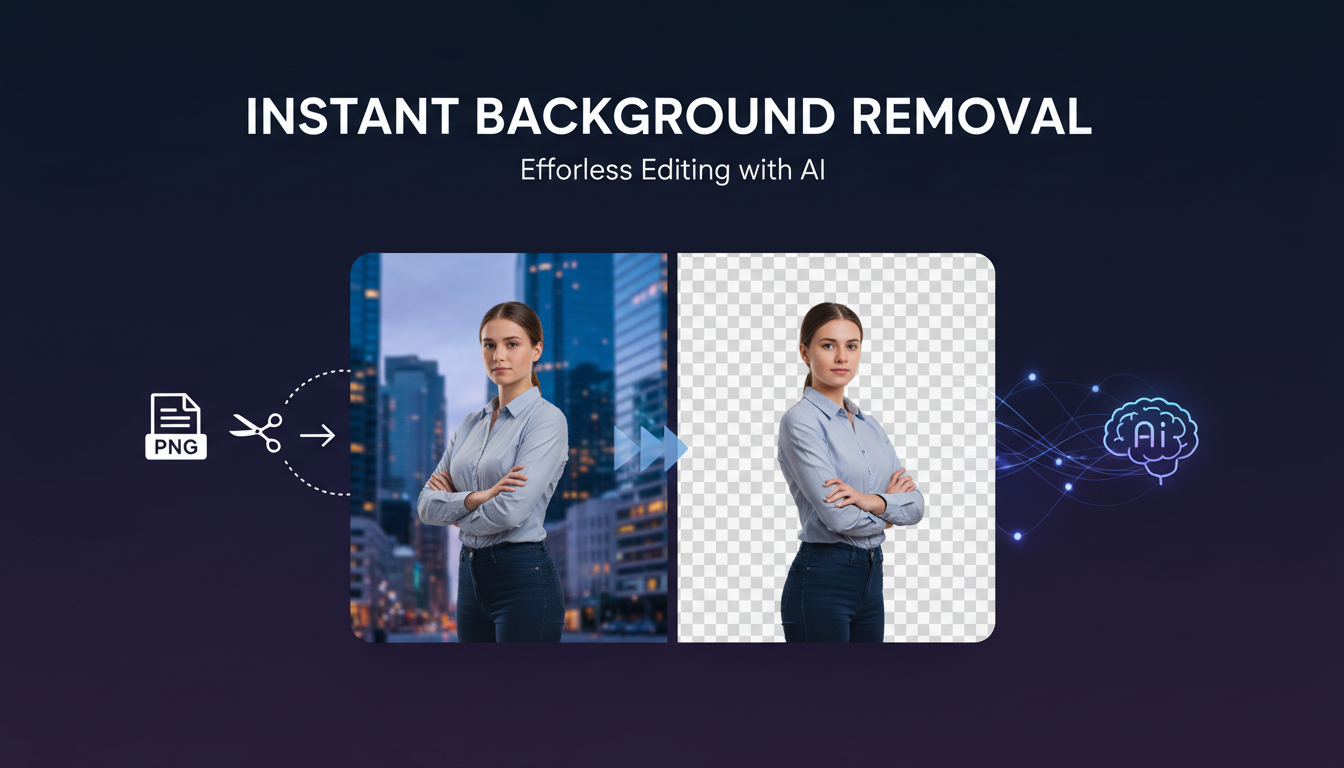
free AI background remover online — remove background from image at stackflowtools.com

Remove Background From Portrait Photos

Use Portrait Mode before uploading. This AI model is specifically trained on human hair, skin tones and face edges — where generic removers fail.

Portrait mode handles flyaway hair, glasses, earrings and beard stubble cleanly. After removal, use the Edge Refinement slider to add a small feather — this removes the harsh cut-out look and makes results appear naturally photographed.

For best results, shoot against a single-color background. High contrast (a person against a white wall) gives the AI the clearest signal.

Product Photo Background Removal

Use General Mode for products and e-commerce photos. It handles straight edges, packaging text, reflective surfaces and irregular shapes well.

Before removing, crop your product image tightly — less background area means more accurate subject isolation. After removal, set a white background for marketplace listings (Daraz, Amazon, Shopify require white for thumbnails).

💡

The resulting PNG is often larger than your original. Compress the output before uploading — most platforms have a 1–2 MB limit per image.

How to Remove a Background on iPhone

iOS 16+ built-in: Open photo in Photos app, press and hold the subject until it glows, tap Copy. Paste the cutout anywhere — this works offline.

For a proper transparent PNG: Open this tool in Safari, select your photo from camera roll. The AI processes it and the PNG downloads directly to your Files app — giving you a shareable file, unlike Apple's paste-only method.

Passport Photo and ID Photo Backgrounds

Remove the original background and replace it with the exact color required. Click Background after removal and enter the hex code (pure white is #ffffff; European passports often use #f5f5f5 for a slightly warm white).

Country requirements: UK uses plain cream/off-white. Pakistan CNIC requires plain white with face taking 70–80% of frame. US requires plain white with specific head measurements. Always verify official requirements before printing — this tool meets color requirements, but dimensions and DPI must be checked separately.

After setting background, download as JPG. If file size is a concern for online forms, use our image compressor to hit the exact target.

Getting Clean Edges — Pro Tips

The quality of your input determines output quality. Follow these practices:

  • Crop close to subject before removal — use our Image Cropper. Less background = more accurate detection.
  • Good lighting matters — even, well-lit subjects separate cleanly. Harsh shadows confuse the AI.
  • Use Portrait Mode for people — General mode often leaves haloes around hair.
  • Raise edge feathering slightly (3–5px) for phone photos — softens the digital-cut look.
  • Complex backgrounds are harder — a person in a forest is harder than against a wall. May need minor touch-ups.
❓ FAQ

Frequently Asked Questions

Common questions about removing image backgrounds online.

Is this background remover really free — no watermark?

+

Yes — 100% free, no watermark, no signup, no daily limits. You get a clean transparent PNG. StackFlow Tools is permanently free.

Are my images uploaded to a server?

+

No. All processing runs entirely in your browser. Your images never leave your device, are never stored online, and are never seen by anyone. Close the tab and everything is erased.

What image formats are supported?

+

Upload JPG, PNG and WebP up to 10 MB. Output is always PNG (the only widely supported format with transparency). Export as JPG with a custom background if you don't need transparency.

Which mode should I use — Portrait or General?

+

Use Portrait mode for any image containing a person — it's trained on hair, skin edges and facial features, and handles flyaway hair better. Use General mode for products, objects, animals, logos. When unsure, try Portrait mode first.

The edges look rough — how do I fix it?

+

Increase the Edge Feathering slider by 3–5 pixels to soften the digital-cut look. For portraits, switch to Portrait mode. Better lighting and simpler backgrounds always give cleaner edges. For tighter crops first, use our Image Cropper.

Can I use this for passport photos?

+

Yes — remove the original background and replace it with the required color. After removal, click Background and enter the hex code (white is #ffffff). Download as JPG for printing. Always verify official requirements — colors vary by country.

Can I remove the background from a logo?

+

Yes, especially for JPG logos with a white box. Use General mode — the AI handles flat graphic shapes cleanly. Result is a transparent PNG you can place over any color. For vector logos, export transparency directly from the source file if possible.

The output file is very large — how do I reduce it?

+

Transparent PNGs are naturally large — they store lossless color data plus a transparency channel. Use our Image Compressor on the output — it reduces PNG size by 40–60% with no visible quality loss.

Can I add a new background after removing the old one?

+

Yes — after removal, the tool shows background replacement options. Set a solid color (any hex code), pick a gradient preset, or upload a custom background image. All applied before download.

Remove Your Background Now

Free, private and instant — no account, no software, no watermark.