Free Online
Image Tools
18 free online image tools — no signup, no watermark, no software needed. Edit, convert, compress, rotate, crop, stretch and combine images directly in your browser. Everything runs on your own device so your photos stay private.
Complete List of 18 Free Image Tools
No tools found. Try a different search term.
Why Use Our Free Online Image Tools?
Every tool on this page works immediately. No account. No software to install. No waiting. Here is what makes these tools different from other free options online.
Your Images Stay Private
Everything runs inside your browser. Your photos never get uploaded to any server — not even ours. Close the tab and all data is gone. No copies left anywhere.
Results in 1-2 Seconds
No upload queues. No waiting for processing. Your own device does the work so results appear almost instantly. Most tools finish before you blink.
Really Free — No Catch
No free trial. No premium upgrade. No credit system. Every tool on this page costs nothing to use, and that will never change.
No Watermarks Ever
Download clean files with nothing added. No logo stamped on your images. No "Made with StackFlow" text anywhere. Just your photo, exactly how you edited it.
Works on Your Phone
All tools work in Safari on iPhone and Chrome on Android. Upload from your camera roll. Download to your photos. No difference from desktop.
No Software to Install
Nothing to download. Nothing to install. Open any tool in Chrome, Safari, Firefox or Edge and it works immediately on any operating system.
Online Sellers
Compress product photos before uploading to Daraz, Shopify or Amazon. Crop to the right size. Remove backgrounds. All in one place.
Social Media
Resize and optimize images for Instagram, TikTok, Facebook and YouTube thumbnails. Combine before and after shots side by side.
Quick Edits
Remove backgrounds, upscale small images, convert file formats — all without opening Photoshop or any other heavy software.
Small Business Owners
Professional image processing with zero budget. No subscriptions. No per-image fees. No accounts to manage for your team.
Photographers
Fix sideways photos from shoots. Batch compress images for web delivery. Upscale client proofs between editing sessions.
Web Developers
Convert AVIF files that users send. Optimize image sizes for page speed. Generate the right formats without leaving the browser.
A Practical Guide to Online Image Tools
Everything you need to know about editing, converting and optimizing images in your browser — without installing anything on your computer or phone.
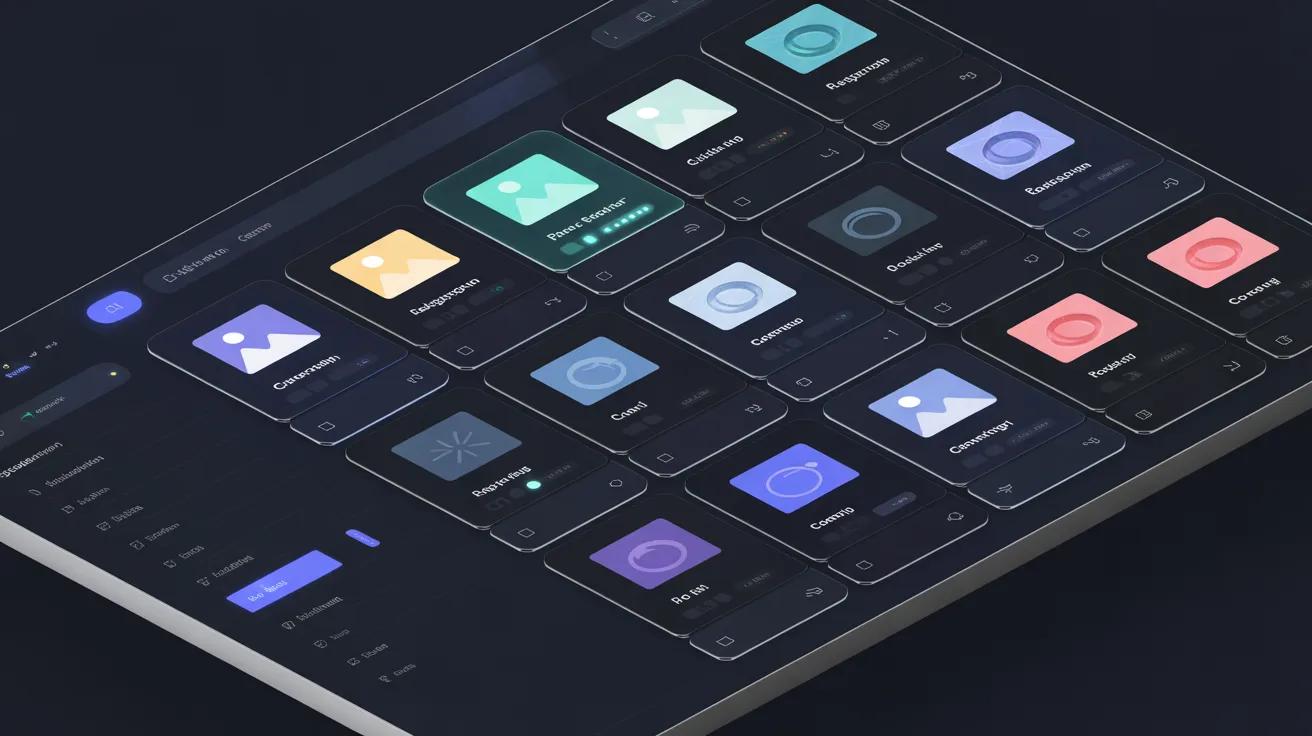
How Browser-Based Image Tools Work
Traditional photo editing software like Photoshop requires a download, installation and often a monthly payment. Browser-based tools run inside your web browser using standard web technologies like the HTML5 Canvas API. No installation needed. No payment required.
When you use any tool on this page, the work happens on your own device. Your image loads into your browser's memory, JavaScript code processes it, and the result downloads back to your device. The image never travels over the internet to a remote server. This keeps your photos private and makes the tools fast.
Which Image Format Should You Pick?
Different formats work better for different situations. Here is what each one is good for:
- JPG — Best for photographs. Small file size. Works everywhere. Slight quality loss when compressed but usually not visible.
- PNG — Best for logos, graphics and anything with a transparent background. No quality loss. Files are larger than JPG.
- WebP — Newer format with better compression than JPG. Works in all modern browsers. Good choice for websites.
- AVIF — Even newer than WebP. Very small file sizes but not every device can open them yet. That is why we have the AVIF to JPG converter.
For most people uploading photos to social media or sending by email, JPG at 85-90% quality is the right choice. For product images with transparent backgrounds, use PNG.
How to Make Images Smaller Without Losing Quality
File size matters. Government job portals in Pakistan often have strict limits — 20KB for passport photos, 50KB for NTS applications, 100KB for FPSC forms. Our Image Compressor tool lets you type the exact size you need and it hits that target automatically.
If you are compressing for a website, start with a JPG at 85% quality. This usually reduces file size by 60-70% with no visible difference. If the file is still too large, reduce the dimensions. A 4000px wide photo from a phone camera can be 1200px wide for web use with no noticeable loss in quality on screen.
What AI Does in Image Processing
Two tools on this page use AI — the Background Remover and the AI Upscaler. These tools use machine learning models trained on millions of images. The background remover learns to tell the difference between a person or product and the background behind it. The upscaler learns what details should look like when an image gets bigger, so it adds detail instead of just stretching pixels.
Both run entirely in your browser. The AI models are downloaded once when you open the tool, then everything runs locally. No uploads. No waiting.
Which Tool Should You Use For Each Task?
With 18 tools available, here is a quick guide to help you pick the right one:
- Photo has the wrong background → Background Remover
- File too large to email or upload → Image Compressor
- Small or blurry image needs enlarging → AI Image Upscaler
- Photo needs trimming to specific dimensions → Image Cropper
- Image needs to fit a different aspect ratio → Image Stretcher
- Photo is sideways or upside down → Image Rotation Tool
- Need a border or glow around a PNG image → Add Outline to Image
- Need to put multiple photos next to each other → Image Combiner
- Need a white or colored full screen display → White Screen Tool
- Want a black and white or vintage photo effect → B&W Converter
- Want to invert colors like a film negative → Negative Converter
- Need a JPG as PNG with transparency → JPG to PNG Converter
- Downloaded a WebP file that won't open → WebP to JPG Converter
- Have a JFIF file from an old camera → JFIF to JPG Converter
- Need a scalable vector version of a logo → Image to SVG Converter
- Downloaded an AVIF file your phone won't open → AVIF to JPG Converter
- Need to turn pictures into a PDF document → Image to PDF Converter
Frequently Asked Questions
Answers to common questions about our free online image tools.
Are these image tools really free?
+Yes. Every tool on this page costs nothing. No limits on how many images you process. No watermarks on your downloads. No signup required. There is no premium version and no free trial that expires. StackFlow Tools is permanently free.
Do you store my images on your servers?
+No. All processing happens inside your browser. Your images never leave your device. They are not uploaded, not stored, and not accessible to anyone including us. When you close the browser tab, everything is erased from memory. This is true for every tool on this page.
What file formats work with these tools?
+The editing and compression tools accept JPG, PNG, WebP, GIF and BMP files. The AVIF to JPG converter accepts AVIF, WebP, PNG and BMP. The Image to PDF converter accepts JPG and PNG. Output options include JPG, PNG, WebP, SVG and PDF depending on which tool you use. Most tools handle files up to 20MB per image.
Do these tools work on iPhones and Android phones?
+Yes. All tools work in Safari on iPhones (iOS 14 or newer) and Chrome on Android phones (Chrome 85 or newer). You can upload photos straight from your camera roll. Downloaded files save to your Photos app or Downloads folder automatically. The layout adjusts to fit your screen size.
Is there a limit on how many images I can process?
+No daily limit. No monthly cap. No credit system. Process as many images as you need. Some tools like the AVIF to JPG converter and Image Compressor let you process up to 10 files at once. You can run multiple batches one after another with no restrictions.
Will compressing an image make it look worse?
+Only if you use very high compression. At 85-90% quality, the difference is not visible to the human eye on a normal screen. Our Image Compressor tool shows you the before and after so you can see exactly what changed. Tools that output PNG are lossless — no quality reduction at all. The AI Upscaler actually adds detail so images look better than before.
How many image tools are available on this page?
+Currently 18 free image tools. The full list includes Background Remover, Image Compressor, AI Upscaler, Image Cropper, Image Stretcher, Image Rotation Tool, Add Outline to Image, Image Combiner, White Screen Tool, B&W Converter, Negative Converter, JPG to PNG Converter, WebP to JPG Converter, JFIF to JPG Converter, Image to SVG Converter, AVIF to JPG Converter, and Image to PDF Converter. More tools get added regularly.
Can I use the edited images for business or client work?
+Yes. You own the images you process. There are no restrictions on how you use the output files. Use them for personal projects, client work, e-commerce product photos, social media posts, print materials, or any other commercial purpose. We add no rights claims to your images.
Start Using Free Image Tools Right Now
18 tools. No signup. No watermark. Pick the tool you need and get started in seconds. Everything runs in your browser.
Not what you were looking for? Explore our other free tools: