Convert Images to PDF
Free, instant and 100% private.
The fastest way to turn JPG, PNG or WebP images into a PDF online — no account, no watermark, no software. Works on iPhone, Mac, Android and Windows directly in your browser.
All processing happens locally in your browser.
How to Convert Images to PDF
Takes less than a minute. No software to install. Works on any device.
Upload your images
Pick JPG, PNG, WebP, or BMP files from your phone or computer. You can add multiple images at once — they will become separate pages in your PDF.
Choose your settings
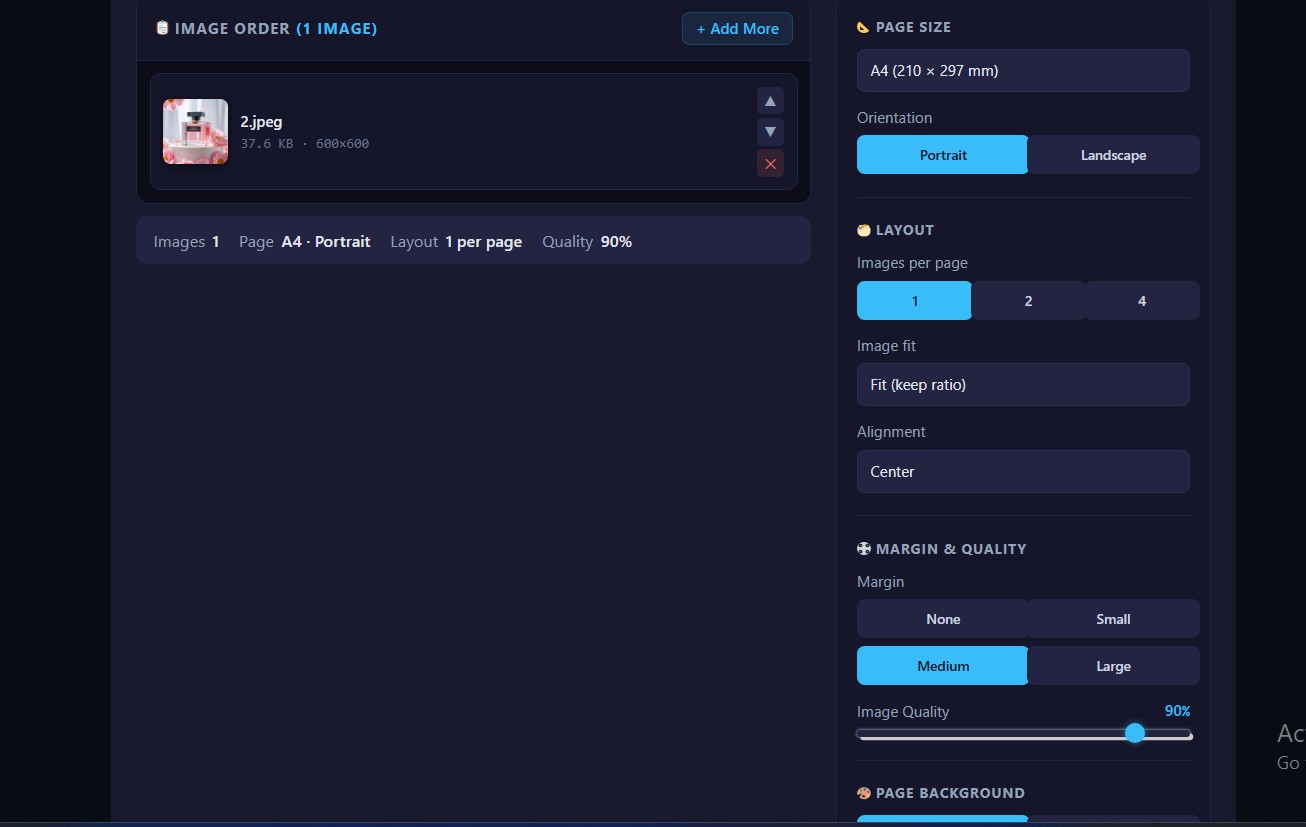
Pick a page size like A4 or Letter. Choose portrait or landscape. Set margins, decide how many images per page, and pick a background color.
Download your PDF
Click "Create PDF". Your file is ready in seconds. Download it instantly — no watermark, no signup form, no waiting.
What This Tool Can Do
Everything happens in your browser. Your images never get uploaded anywhere.
Combine multiple images
Turn several photos or scanned pages into one PDF file. Each image becomes a separate page.
Choose from 6 page sizes
A4, A3, A5, Letter, Legal, or Tabloid. Pick what works for your document.
Rearrange the order
Use the up and down arrows to change which image comes first, second, and so on.
Add margins
None, small, medium, or large. Add white space around each image if you need it.
Control how images fit
Fit to page, cover the page, stretch, or keep actual size. You decide.
Change background color
White, black, grey, or any hex color you want. Good for images with transparent backgrounds.
100% private
Your files stay on your device. Nothing gets uploaded to any server. Close the tab and everything is gone.
Works on phones too
Open Safari on iPhone or Chrome on Android. Upload from your camera roll. Save the PDF to your Files app.
How to Add Images to a PDF
A few common scenarios. All free, all private.
Combine multiple images into one PDF
Select all your images at once — hold Ctrl (Windows) or Cmd (Mac) while clicking. Use the arrows to put them in the right order. Choose how many images per page (1, 2, or 4). Click "Create PDF". Done.
This is useful for product photos, scanned documents, portfolios, or any time you need to send several images as one file.
On iPhone (no app needed)
Open Safari and go to this page. Tap "Upload Your Images" and pick photos from your camera roll. Adjust the settings if you want. Tap "Create PDF". When it's ready, tap "Download" — the PDF saves to your Files app.
That's it. No app to install, no account to create.
On a Mac
For a single image: Open the image in Preview. Go to File → Export as PDF.
To add an image to an existing PDF: Open the PDF in Preview. Go to View → Thumbnails. Drag your image into the thumbnail sidebar. It becomes a new page.
Our tool is faster if you have multiple images or need specific page sizes.
Which image format works best?
JPG at 85-95% quality: Good for photos. Small file size, looks fine.
PNG: Best for screenshots, logos, or anything with text. No quality loss.
WebP: Works too. Our tool handles it.
If your image is very large (over 10 MB), compress it first using our Image Compressor.
Crop or resize before converting
Sometimes you want to trim an image before adding it to a PDF. Use these free tools first:
- Image Cropper — cut to exact dimensions
- Image Compressor — reduce file size
- Image Rotation Tool — fix sideways photos
Frequently Asked Questions
Quick answers. No fluff.
Is this image to PDF converter really free?
+Yes. No watermarks, no signup, no hidden fees. You can use it as many times as you want.
How do I put multiple images into one PDF?
+Select all your images at once (hold Ctrl or Cmd while clicking). Use the arrows to reorder them. Then click "Create PDF". Each image becomes a separate page.
How do I convert an image to PDF on my iPhone?
+Open this page in Safari. Tap "Upload Your Images" and pick photos from your camera roll. Adjust settings if needed. Tap "Create PDF". Then tap "Download" — the PDF saves to your Files app. No app needed.
Are my images uploaded to a server?
+No. Everything runs in your browser. Your images never leave your device. When you close the tab, everything is erased.
What image formats work with this tool?
+JPG, PNG, WebP, GIF, and BMP. Each file can be up to 10 MB.
What page sizes can I choose from?
+A4, A3, A5, Letter, Legal, and Tabloid. You can also choose portrait or landscape orientation.
Can I fit more than one image on a page?
+Yes. You can fit 1, 2, or 4 images per page. Good for contact sheets or comparing product photos side by side.
The PDF looks different from my original image. Why?
+Check the "Image fit" setting. "Fit" keeps your image's proportions. "Stretch" will squash it. "Cover" may crop edges. Try different fit options to see what works best for your image.
Ready to create a PDF?
Free, private, instant. No account, no software, no watermark.